We no longer support this browser. For an optimal experience, we recommend updating your browser.

Tower modem lights guide
What do the lights on your modem tell you? Watch the video below or see the descriptions for each light.
This guide is for all tower modems (a black box or tower). There may be slight differences in light order or appearance between modem models, but the functions are similar.
This guide is for CenturyLink tower modems.
This includes all modems except the C4000 series and fiber SmartNIDs.
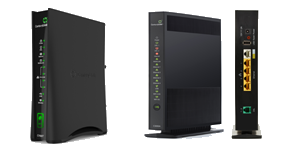

Video: A guide to modem lights
What your tower modem lights mean
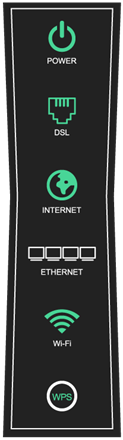
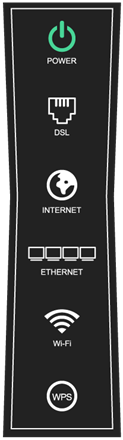
Solid GREEN = power on.
See below for power light colors other than green and what they mean.

Power light OFF
What it means: The modem isn't plugged in or doesn't have a power source.
What to do:
- Make sure you are using the correct power supply (the one that came with the modem).
- Check that your outlet is working.
- If you are using a power strip, surge protector, or you have a lot of devices using the same power source as your modem, it may not be getting sufficient power. Make sure it's plugged directly into a wall outlet, or try a different outlet.

Power light RED
What it means: The modem is testing its hardware. If it's still red after a few minutes, there could be hardware or sofware failure.
What to do: Restart your modem.


Power light ORANGE or blinking GREEN/ORANGE
What it means: The modem is testing its software. If it remains orange or blinking orange for more than a few minutes, there could be a problem.
What to do: Restart your modem.
Troubleshooting the power light
If the power light remains off, red, orange, or blinking for more than a few minutes, there may be a problem. If you've tried the suggestions above, the last resort is to reset your modem.
If a reset doesn't solve it, contact technical support for help.
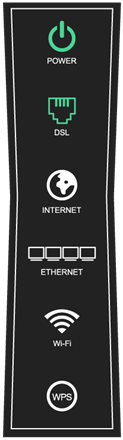
After the phone cord is plugged into the back of the modem and connected to an active wall jack, the modem will search for the DSL signal. Once it connects to our network, the DSL light will turn solid GREEN.
Check the internet light next, or see below if the DSL light does not turn green.
Two DSL lights? If your modem has two DSL lights, this means you have a "pair-bonded" connection, or two lines put together to increase speed. The descriptions here will apply to two DSL lights the same as to one.

DSL light OFF
What it means: The modem doesn't detect a network connection. If it remains off for more than a minute after the power light is green, see the troubleshooting instructions below.

DSL light blinking GREEN SLOWLY
What it means: The modem is searching for the CenturyLink network. If it keeps blinking for more than 5 minutes, see the troubleshooting instructions below.

DSL light flashing GREEN QUICKLY
What it means: The modem has detected the network and is connecting. If it keeps flashing for more than 5 minutes, see the troubleshooting instructions below.

DSL light RED
What it means: The modem can't detect the CenturyLink network. If it stays red for more than 30 seconds, see the troubleshooting instructions below.
Troubleshooting the DSL light
If the DSL light on your modem remains off, blinking, or red after a few minutes, there may be an issue with the network. Here are some things to try:
- Make sure your equipment is set up correctly and that your modem is not filtered.
- Try rebooting your modem.
- If you have another phone jack in the house connected to the internet, try connecting the modem to that phone jack, in case the one you're currently using is faulty.
If the problem continues, contact technical support for help.
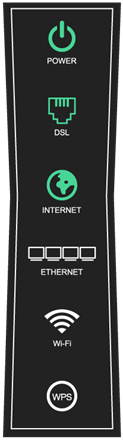
During normal use, the internet light will flash and flicker green whenever your modem is sending data back and forth between the internet and your devices.


Internet light any color other than GREEN
What it means: The modem is encountering a problem and you should contact technical support.
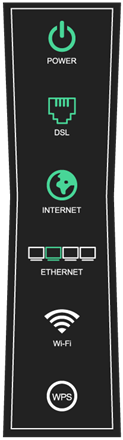
The Ethernet light(s) will be solid GREEN only when a device is plugged into the corresponding port on the back of the modem with an Ethernet cable.
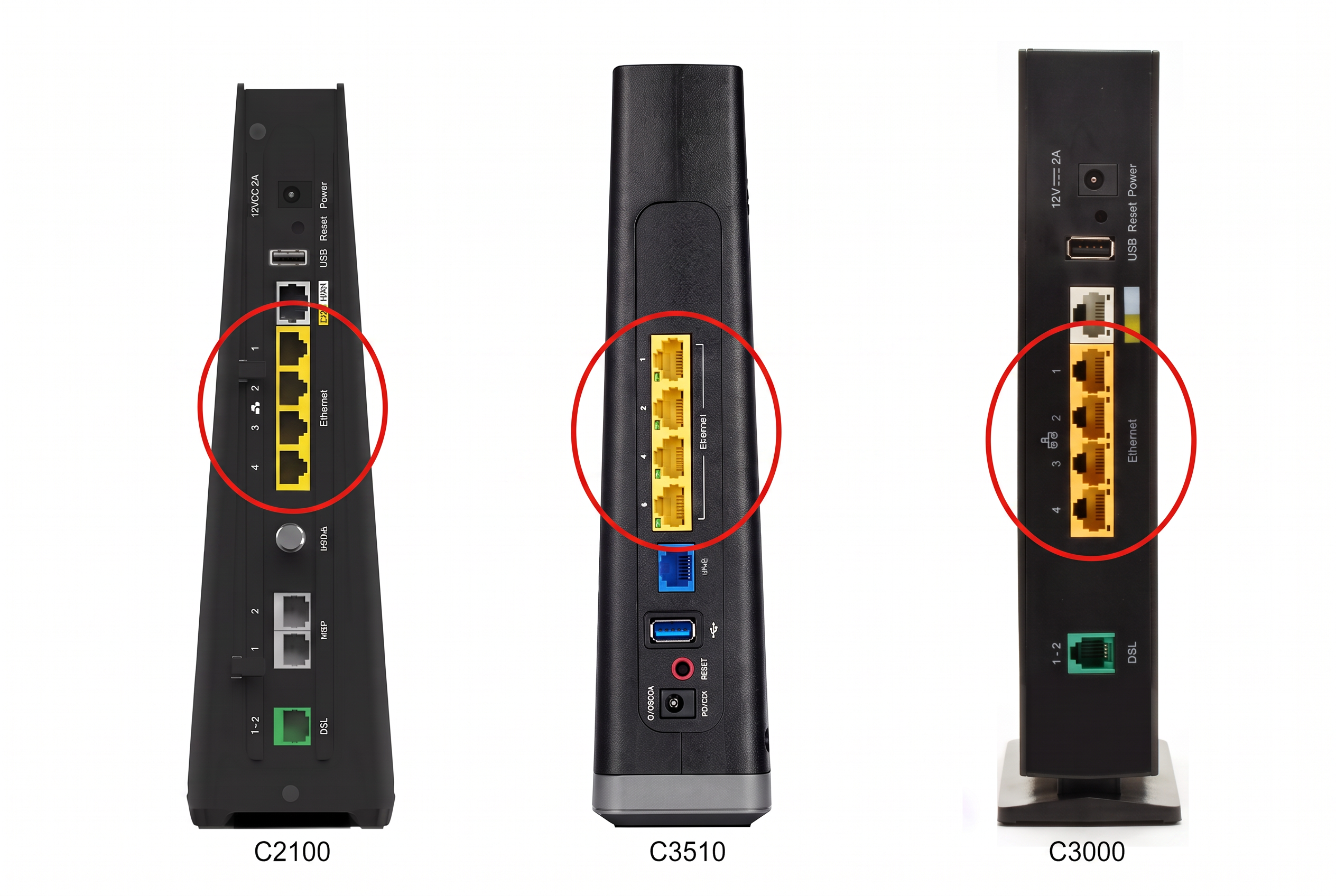
The Ethernet ports on the back of tower modems
Troubleshooting the Ethernet light
If you do have a device connected to an Ethernet port, but the light is not coming on, try these tips:
- Make sure the Ethernet cord is fully plugged into both your computer port and the modem port.
- Try a different Ethernet port on the modem (most modems have 4 ports).
- Try another Ethernet cable if you have one.
- Make sure the Ethernet card on your computer is enabled. Do a web search for your specific brand and model of computer to learn how to do this.
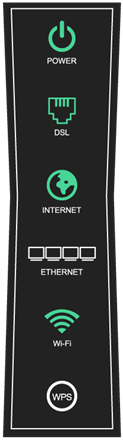
The WiFi light will be solid GREEN when WiFi is enabled on the modem, and will flash or flicker whenever data is transmitted over the WiFi connection.

Wireless light OFF
What it means: The modem's WiFi function ("wireless radio") hasn't been enabled in the settings.
To enable WiFi on your modem:
- Open a web browser on a device that is connected to the modem, and go to http://192.168.0.1. Sign in using the admin username and password on your modem label.
- Select the Wireless Setup menu.
- Select Basic Settings in the left sidebar.
- Enable Wireless Radio.
- Select Apply to save your changes.

WiFi light ORANGE
WiFi light ORANGE: The WiFi is temporarily turned off according to the wireless schedule feature. The wireless schedule (in the modem's Wireless Setup settings) allows you to set specific days and times that your WiFi network turns on and off.
If you want to adjust the wireless schedule on your modem:
- Open a web browser on a device that is connected to the modem, and go to http://192.168.0.1. Log in using the admin username and password on your modem label.
- Select the Wireless Setup menu.
- Select the Wireless Schedule option in the left sidebar.
- Make the desired changes by selecting the days/times to enable or disable the WiFi.
- Select Apply to save your changes.
WiFi Protected Setup (WPS) is an easy way to connect devices to your WiFi network with the press of a button. When the WPS light is GREEN, it is enabled and ready to connect. You can push the button to connect a WPS-compatible device to your modem's WiFi network without entering the SSID/passphrase on the device.

WPS light OFF
What it means: WPS is disabled.
To enable WPS:
- Open a web browser on a device that is connected to the modem, and go to http://192.168.0.1. Log in using the admin username and password on your modem label.
- Select the Wireless Setup menu.
- Select the WPS option in the left sidebar.
- Select Enable.
- Select Apply to save your changes.

WPS button blinking ORANGE
What it means: WPS is connecting to a device. If this continues for more than 2 minutes, try rebooting your modem, then try pairing (connecting) again.

WPS button blinking RED
What it means: There was an error when connecting, or a session overlap was detected. If this continues for more than 30 seconds, try rebooting your modem.


Support topics



About Lumen | About CenturyLink | Careers | Investor Relations | Newsroom | Legal | Privacy Notice | Tariffs | Customers with Disabilities | Site Map | Cookie Settings | CenturyLink in Your Area | CenturyLink.net | White/Yellow Pages | GetCenturylink | CenturyLink Internet Partner
Residential | Small Business | Enterprise | ©2026 CenturyLink. All Rights Reserved.