We no longer support this browser. For an optimal experience, we recommend updating your browser.

Modem and Equipment Support
- Modems by Model
- Modem Setup
- Troubleshooting
- WiFi and Security
- Modem Settings (GUI)
- Upgrade, Replace & Return
Learn about your CenturyLink modem
Top modems
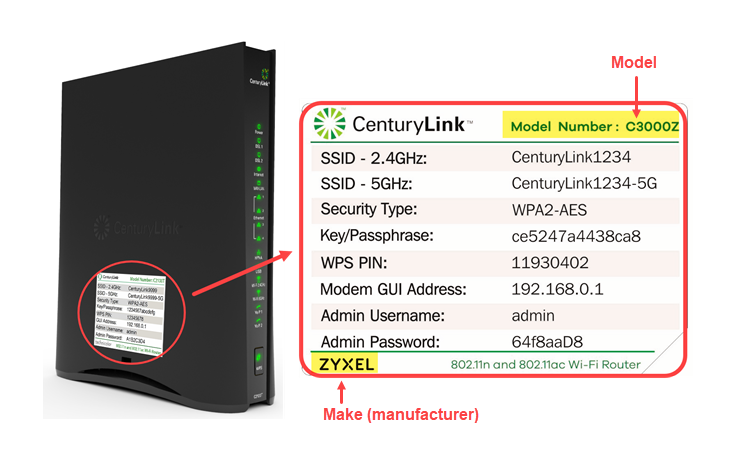
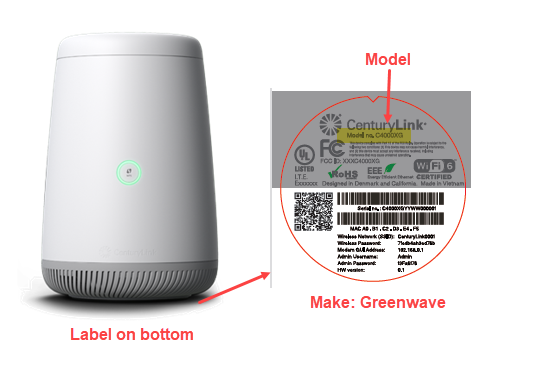
Find the model number on your modem sticker
Check the sticker on the back or bottom of the modem to find your model name and number.
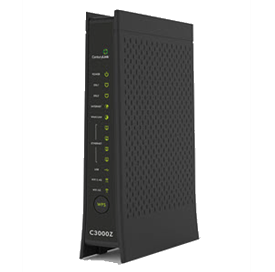
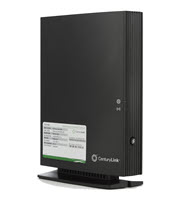
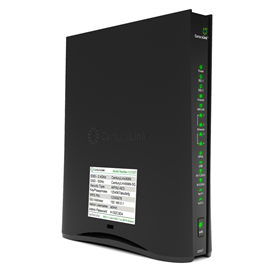
Fiber modems
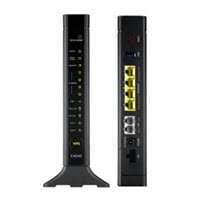
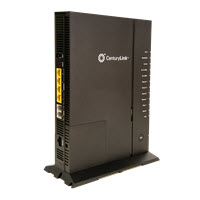
Instant Fiber
Older modems - TIME TO UPGRADE!
The following models are retired or being retired soon, and should be replaced as soon as possible. Visit the retired modems page to get specifications for most of the modems listed below.
Actiontec
C1000A
C2000A
Q2000*
C1900A
C2000A
PK5000A
PK5001A
Q1000A
Technicolor & Other
C1100T
AC1200*
C2000T
DDR2200
Zyxel
C1000Z
C1100Z
FR1000Z
C2100Z
PK5001Z
Q1000Z
NBG-419N*
P870HN*
Q100*
* Modems with an asterisk are fully retired and no longer supported. Contact us to get an upgrade.
| Equipment | Ports/Features | Power (watts) |
|---|---|---|
| Actiontec C2300A | VDSL2 (all), GigE WAN, SFP Backup WAN, VDSL2 WAN, GigE LAN (4), WiFi (n) HP, WiFi (ac) HP, WiFi (add) HP (3), 802.11n 256 QAM, USB3 (2) | 18.1 w |
| Actiontec C3000A | VDSL2, VDSL2 Simul WAN, GigE LAN (5), WiFi (n) HP, WiFi (ac) HP, WiFi (add) HP (3), USB2, PCIe (2) | 13.0 w |
| Adtran C424G | GPON, GigE LAN (4), WiFi (ac) HP, WiFi (n) HP, FXS(2), USB2 | 8.8 w |
| Adtran 841-T6 wireless extender | Advanced LNE, WiFi (n) LP, WiFi (ac) LP (2), WiFi (add) LP (2), USB2, Bluetooth, PCIe (2), 2.5 GigE | 10.5 w |
| Axon C4000BG | VDSL2(all), GigE WAN, VDSL2 Simul WAN, GigE LAN (4), WiFi (n) HP, WiFi (ac) HP, 802.11n 256 QAM, USB2, PCle (3), 160 MHz channel | 14.7 w |
| Axon C4000LG | VDSL2(all), GigE WAN, GigE LAN (4), WiFi (n) HP, WiFi (ac) HP, 802.11n QAM, USB2, PCIe (3), 160 MHz channel | 11.0 w |
| Axon C4000XG | GigE, No SFP Backup WAN, GigE LAN (4), WiFi (n) HP, WiFi (ac) HP, WiFi (add) HP (4), 802.11n QAM, USB2, PCI3 (3), 160 MHz channel | 15.4 w |
| Axon C5500XK | SFP GPON, GigE WAN, GigE LAN, USB3 | 4.4 w |
| Axon Q9500XK wireless extender pod | Advanced LNE, WiFi (n) LP, WiFi (ac) LP (2), WiFi (add) LP (2), USB2, Bluetooth, PCIe (2), 2.5 GigE | 11.2 w |
| Zyxel C3000Z | VDSL2 (all), GigE WAN, GigE LAN (4), WiFi (ac) LP, WiFi (add) LP (2), WiFi (n) HP, WiFi (add) HP, USB2 | 10.4 w |
| Zyxel C3510XZ | GigE, GigE LAN (4), WiFi (n) LP (2), WiFi (ac) LP, WiFi (add) LP (2), WiFi (add) HP, 802.11n QAM, USB2 | 8.5 w |
| Zyxel C4000LZ | VDSL2(all), GigE WAN, GigE LAN (4), WiFi (n) HP, WiFi (ac) HP, 802.11n QAM, PCIe (3), 160 MHz channel | 12.1 w |
ADSL2+: Asymmetrical Digital Subscriber Line. ADSL2+ is a way to deliver high-speed internet over a phone line.
VDSL2: Very-High-Bit-Rate Digital Subscriber Line. VDSL2 is one way to deliver high-speed Internet over a phone line.
FastE LAN: Ethernet ports that can handle speeds up to 100 Mbps. FastE LAN ports are used to connect to devices on your local network.
GigE LAN: Ethernet ports that can handle speeds up to a Gig. GigE LAN ports are using to connect to devices on your local network.
GigE WAN: Ethernet ports that can handle speeds up to a Gig. GigE WAN ports are used to connect to other networks.
GPON: Gigabit Passive Optical Network. Used to deliver high-speed internet over a fiber network.
WiFi: WiFi (wireless) is used to connect devices to each other or to the internet without wires, using radio frequency.
USB2: Universal Serial Bus. USB allows devices to physically connect and logically communicate to each other. This port is for future use.
FXS: Foreign eXchange Subscriber interface. FXS ports are used to connect analog telephone devices.
HPNA: HomePNA Alliance. The HPNA port is used to distribute high-quality video inside the home over existing coaxial wires.
Install your modem and connect your internet
Setting up a new modem or new internet service from CenturyLink? Choose the type of modem you have to view a setup video and written instructions.
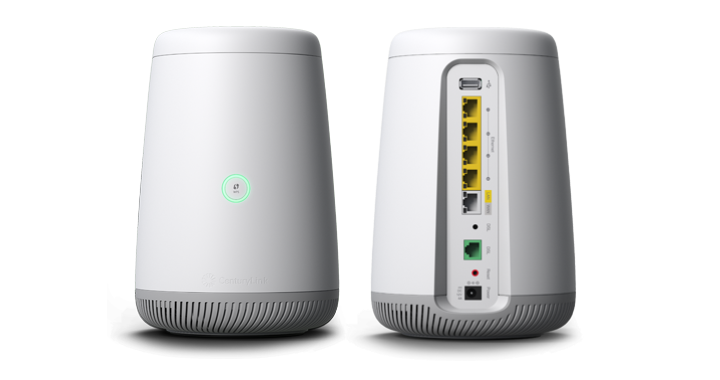
For the following models:
C4000BG * C4000BZ * C4000LG * C4000LZ * C4000XG
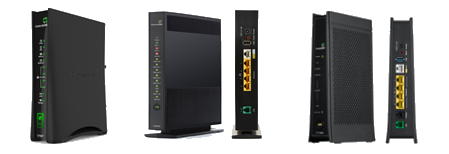
For the following models:
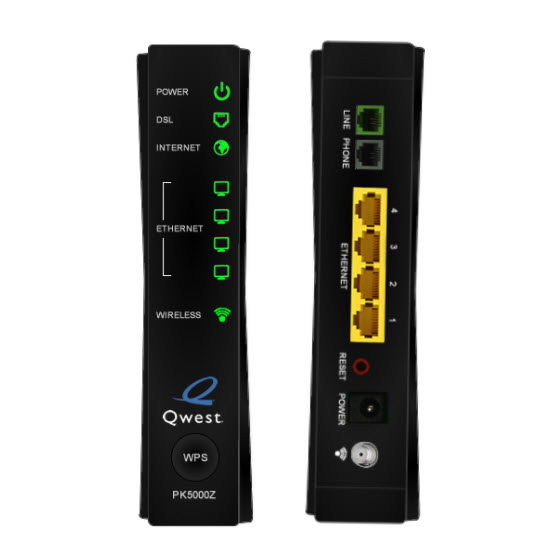
C3000Z * C3510XZ * C844G * C424G * C2300A * PK5000Z
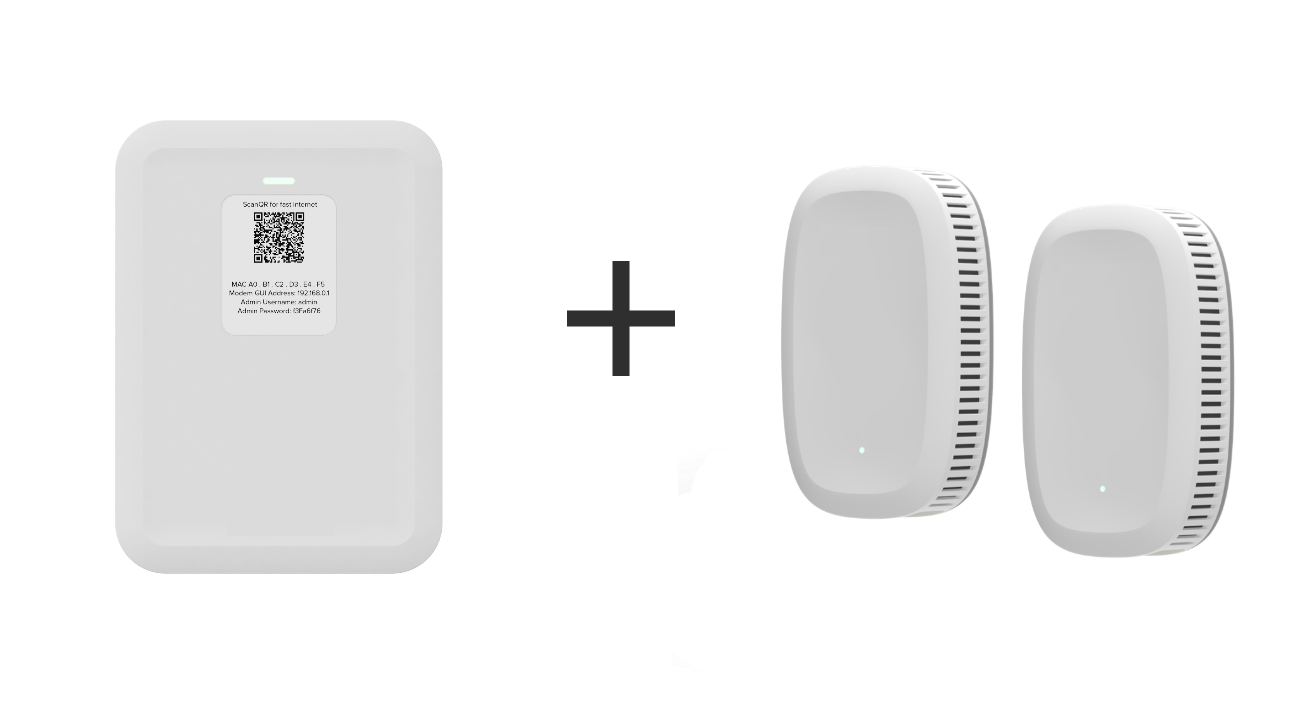
For following models:
C5500XK SmartNID

Connect devices to your WiFi network
Modem troubleshooting tips
Reboot
Slow or spotty internet connection? Start by rebooting.
Is your firmware up to date? Modems usually update themselves, but you can check the modem settings to see if there's an upgrade available.
In more severe cases, a technician or support agent may instruct you to do a modem reset.
Check cords
1. Plug the black power cord into a wall outlet and into the power port on the back of the modem.
2. Plug the green DSL cable into the green DSL port on back of the modem, then into an active phone jack.
For the fastest connection to your device, plug the yellow Ethernet cord into one of the Ethernet ports on the modem, and then into your device's Ethernet port.
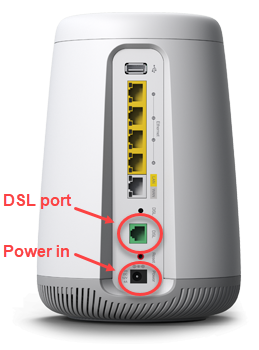
DSL and power ports on the back of the C4000
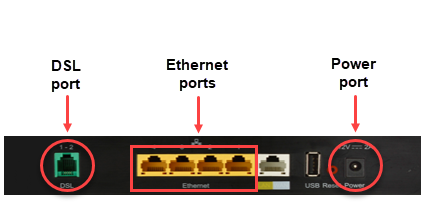
DSL and power ports on the back of a tower-style modem such as C3000 or 3510
DSL filters for internet + phone service
If you have both home phone service AND high-speed internet from CenturyLink, you will need to install DSL filters on all of your phone cords. These are essential to make sure you get the best phone and internet connection.
Note: Filters are not included in your modem kit. If you have home phone service from CenturyLink, filters should be included at the time of your internet order, and will arrive in a separate package. If you did not receive filters, please chat with us.
Filters are not needed if you have a C4000XG.
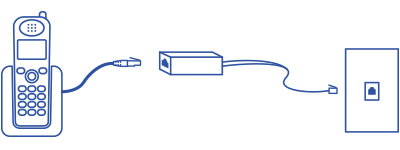
Plug the phone cord into a filter and then into the wall jack.
If you have cordless phones, you only need to install a filter on the phone base that plugs in to the wall jack. Other units that plug into an electrical outlet but not a phone jack do not need filters.
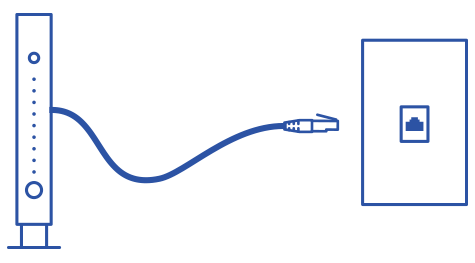
The DSL cord from the modem to the jack should not have a filter.
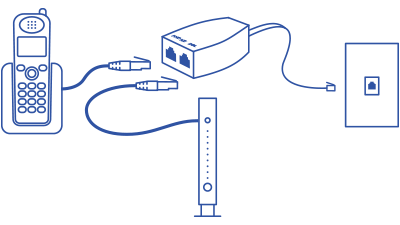
Use a DSL splitter to plug the modem and a telephone into one wall jack.
Read and troubleshoot the modem lights
C4000 modem lights
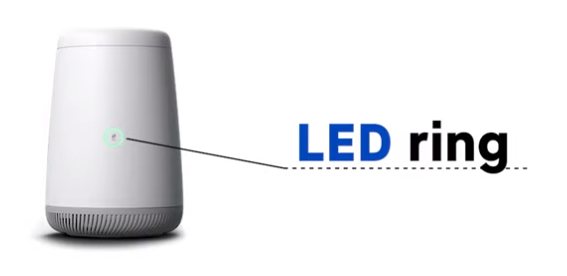
For the following models:
C4000BG * C4000BZ * C4000LG * C4000LZ * C4000XG
Video: Guide to the modem lights (C4000 series)
Tower modem lights
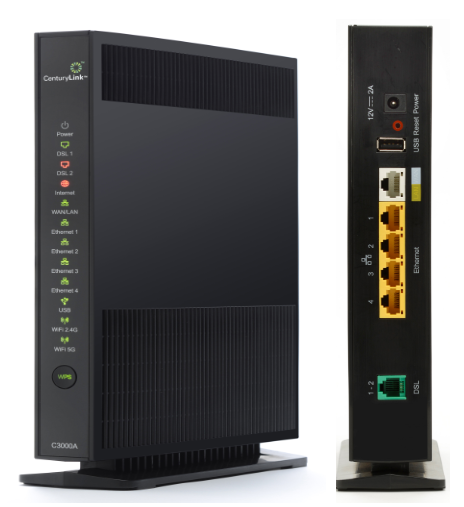
For all following models:
Actiontec * Adtran * Calix * Technicolor * Zyxel (except C4000)
Video: Guide to the modem lights (tower-style modems)
Modem settings
You can customize your WiFi, security, and more from the modem settings site.
Parental controls in modem settings
Modem upgrades, returns, and replacements
Time for a new modem?
Learn how to replace or upgrade a CenturyLink modem.
Modem Recycling
Send in your old CenturyLink modem and we'll recycle it at no cost!
Support tools


Support topics



About Lumen | About CenturyLink | Careers | Investor Relations | Newsroom | Legal | Privacy Notice | Tariffs | Customers with Disabilities | Site Map | Cookie Settings | CenturyLink in Your Area | CenturyLink.net | White/Yellow Pages | Centurylink Retailer | CenturyLink Internet Partner
Residential | Small Business | Enterprise | ©2026 CenturyLink. All Rights Reserved.