We no longer support this browser. For an optimal experience, we recommend updating your browser.

How to change your CenturyLink WiFi password
Creating a strong password (also called a network security key) is an important step in securing your home network.
There are three ways you can change your WiFi password:
- In the CenturyLink app
- On the My CenturyLink website
- From your modem settings
While you're securing your network, you may also want to customize your network name (SSID).
After any changes to your WiFi network, you'll need to reconnect devices to the network.
Unable to edit your network?
There are some scenarios where you can't change your WiFi password in My CenturyLink. Learn more about these special cases.
There are also times when the connection between our network and your modem temporarily won't allow you to edit your network. If this happens, you won't see the Edit Network option. You can try again later, or do it from your modem settings.
How to change your WiFi password in the CenturyLink app
The app is the easiest way to change your WiFi password.
1. Tap on the My Services option from the menu at the bottom of the app.
2. Scroll down the My Services screen to find your list of WiFi networks. Tap on the network whose password you want to change.
3. From the WiFi Network details screen, tap the button to Edit network.
4. On the Edit WiFi Network screen, enter the new password, then tap Save.
How to change your WiFi password on the My CenturyLink website
1. Sign in to My CenturyLink and click on Services from the top menu. The Services page opens to the Internet and WiFi section.
2. Scroll down the page to find the section for WiFi Networks.
Example image only
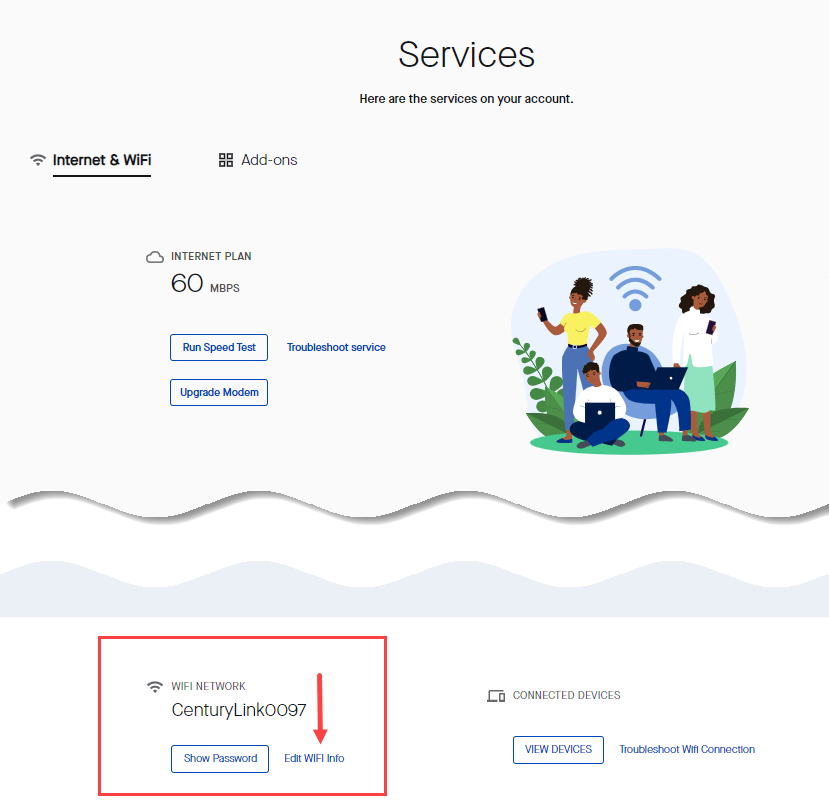
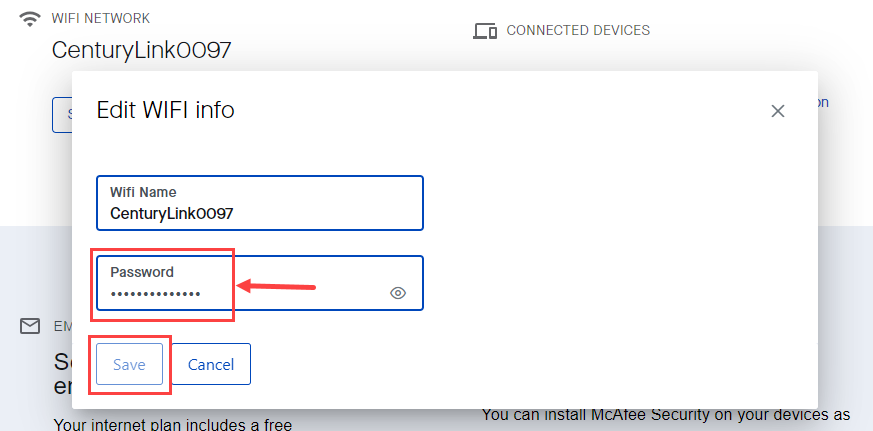
3. Click on the link to edit WiFi info. This will open a box showing your current network and password. Simply enter a new password and click "save."
Password tips
If you are prompted to choose 64 bits or 128 bits, follow these guidelines:
- 64 bits: Enter 10 characters*
- 128 bits: Enter 26 characters*
* Characters can only contain letters between A-F and numbers between 0-9 with no spaces.
Your WiFi password must contain:
- At least 8 characters
- At least one number from 0 to 9
- At least one letter from A to Z
Note: The space character can be used (but is not required)
Helpful hint: If you lose or forget your password, you can sign back in to the Wireless Security menu and choose "Use Default." This will revert the password to the original one printed on the modem sticker.
Can't edit network
If one of the following situations is true for you, you will not be able to edit your WiFi network in the app or on the website.
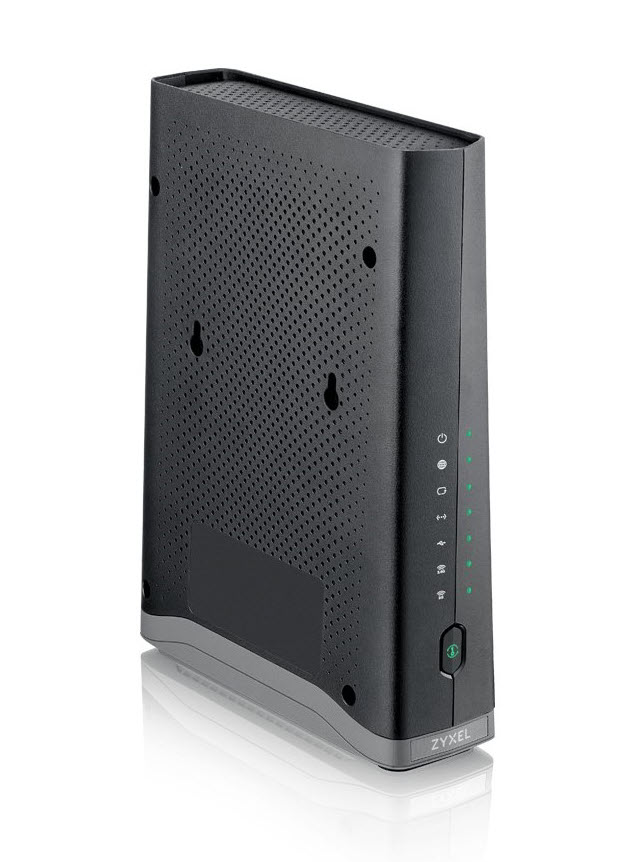
If you have a Zyxel C3510XZ modem, you can change your WiFi password by following these instructions to change WiFi settings.
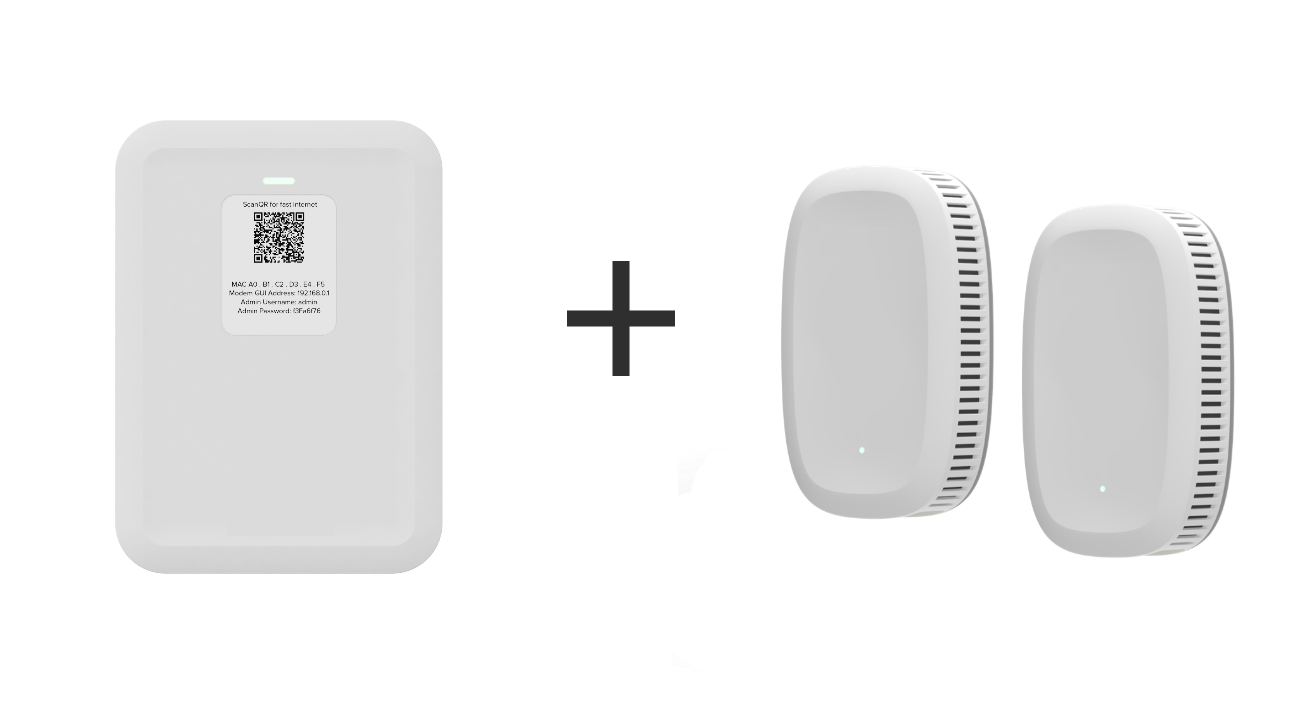
If you have fiber service and a SmartNID with Premium WiFi, you can follow these instructions to change your WiFi password.
If you provided your own modem or router for your CenturyLink service, please refer to the user guide for your particular equipment.
All about WiFi
Top Internet Topics
-
Check for an outage -
Troubleshooting slow internet -
Speed hub -
Upgrade your service -
WiFi support -
Internet security
View all Internet topics

Use the CenturyLink app to manage your account and network.


Support tools


.png)

Support topics



About Lumen | About CenturyLink | Careers | Investor Relations | Newsroom | Legal | Privacy Notice | Tariffs | Customers with Disabilities | Site Map | Cookie Settings | CenturyLink in Your Area | CenturyLink.net | White/Yellow Pages | Centurylink Retailer | CenturyLink Internet Partner
Residential | Small Business | Enterprise | ©2026 CenturyLink. All Rights Reserved.