We no longer support this browser. For an optimal experience, we recommend updating your browser.

My CenturyLink Support

Account settings
Billing and payments


Pay and manage your account
More help with My CenturyLink
From the website
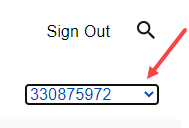
Sign in to My CenturyLink and select Add Account from the account drop-down menu in the top right corner of the screen. Then follow the prompts to enter the account number and other details.
From the app
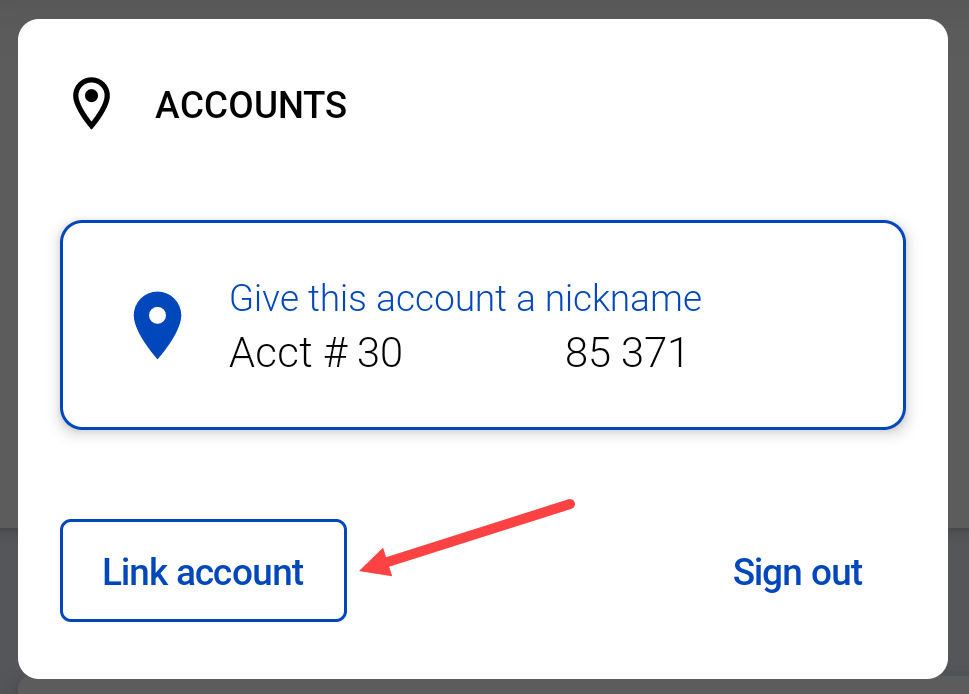
From any app screen, click on the account drop-down at the top left. This will open a menu with an option to choose which account you're viewing, or to add an account. Select Link account, then follow the steps to enter the new account number and information.
1. Sign in to My CenturyLink and click on Settings.
2. Select Notifications, then make your selections. That's it!
When you set your notifications, you'll see the email address and phone number where those notifications will be sent. You can edit that information if needed.
Notification descriptions
Order status
For new customers or a current customers who have added a new service, upgraded service, or moved service to a new address, this option will alert you to the order status. This may include appointments with a technician, shipment of new equipment, or confirmation of the date a new service will be activated. These notifications only apply when you have an order in progress.
Billing
Notifications about something important or unusual on your account, such as a past-due bill or undeliverable payment.
Repair
Status alerts about your technician service visit.
Promotions
Notifications with information about offers, new products, and tips to get the most out of your CenturyLink services.
If you don't want to get any promotional or marketing information from us, learn how to opt-out of CenturyLink marketing.
Monthly bill
Receive a monthly email notification when your new bill is ready. This notification is automatic for prepaid and paperless billing accounts.
Payment reminders
Choose how many days in advance you want to be reminded before your bill is due. You can even receive multiple reminders. Prepaid and AutoPay customers will receive a reminder that their automatic payment is scheduled to go through on a particular date.
For AutoPay only: Bill exceeds a certain amount
This alert only applies to customers signed up for AutoPay. If your amount due goes over the amount you set when you signed up for AutoPay, you will receive a notice to help you avoid late fees resulting from a portion of your bill being unpaid.
If you are enrolling in or adding an account to My CenturyLink, AND you have CenturyLink landline phone service, you will need a security code to complete your registration.
This security code (also called authentication code) adds a layer of protection to your personal information and calling history.
Your code is printed on the Welcome Letter that you received after you ordered new service from CenturyLink. It also appears on your first three monthly bills, under the section "Get an Online Account" on page one.
If you don't have those documents handy, you can use click the button below to request your code. You will need to enter your account number.
Using the request tool, there are a few different ways you can receive your security code.
- Email: If you have an email address on record with us for at least 30 days, you'll see an option to have the code emailed to you.
- Automated call: You will receive a call within 5 minutes of your request. If you don't answer, we'll leave a voice message with your security code.
- Paper mail: You will receive the code in 7 to 10 days at the billing address we have on file for your account.
You can also chat with us to request your security code. Once the agent verifies your identity, you will receive your code.

My CenturyLink App
Check your account, pay your bill, manage your connection, and more in the


Support tools


Support topics



About Lumen | About CenturyLink | Careers | Investor Relations | Newsroom | Legal | Privacy Notice | Tariffs | Customers with Disabilities | Site Map | Cookie Settings | CenturyLink in Your Area | CenturyLink.net | White/Yellow Pages | Centurylink Retailer | CenturyLink Internet Partner
Residential | Small Business | Enterprise | ©2026 CenturyLink. All Rights Reserved.